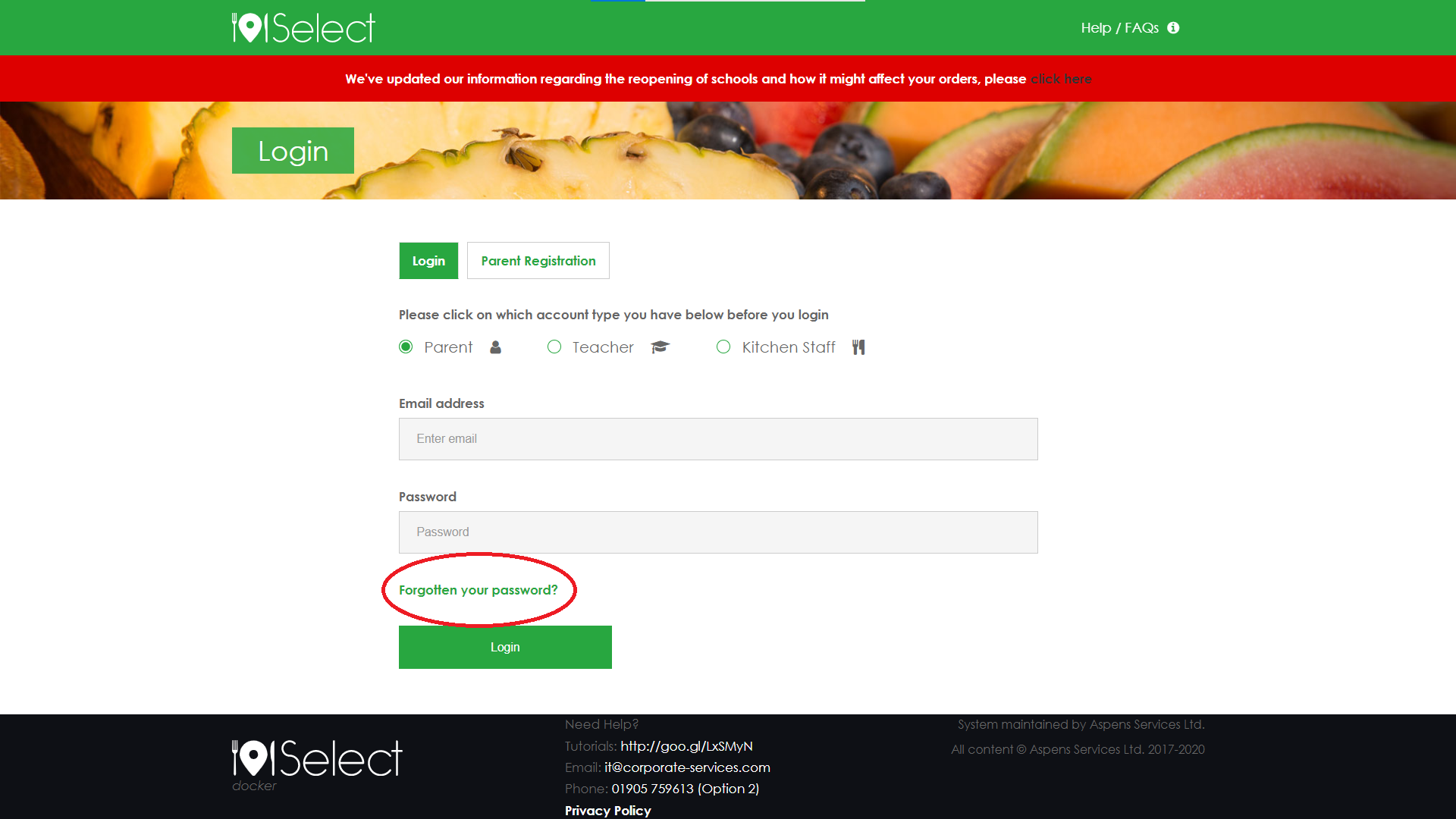
Registering for the first time?
If you haven't used Select before or if your school has just started using Select, you'll need to register to use the site.
From the login screen, select Parent Registration
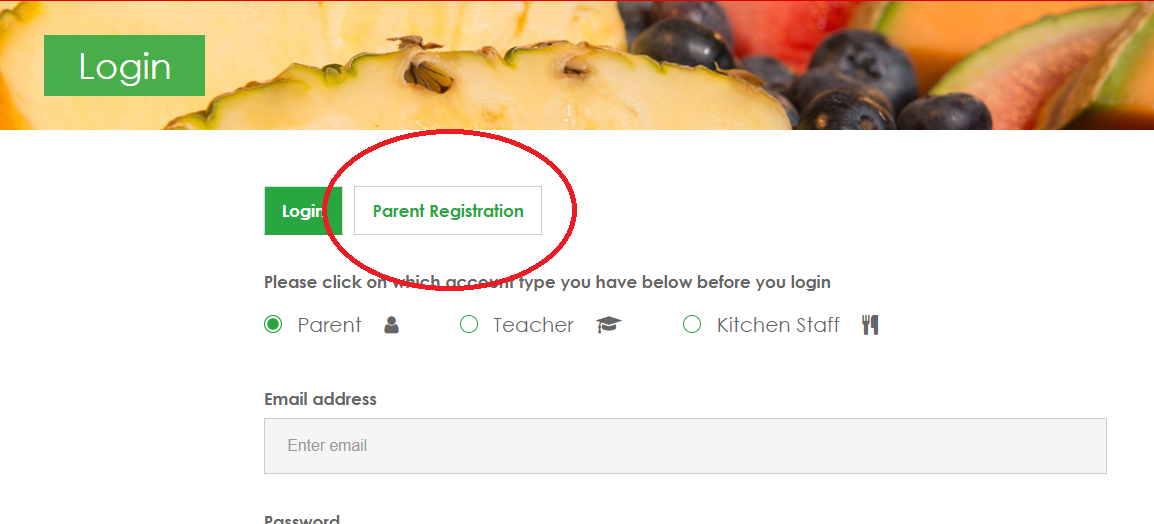
On the Parent Registration page that appears, fill out the required information (Title, First Name, Last Name, Email Address, Password, Security Question and Answer, Telephone Number)
You'll also need to tick the "I'm not a robot" box:
Why do I need to prove I'm not a robot?

We use reCAPTCHA on our website to protect our site from malicious software attacks and spam. "Bots" and other malicious software can't figure out the tasks, but humans can, so it blocks the bots from accessing our site while letting you (the human) in. If the bots were able to get in, they might be able to prevent you from accessing the site and ordering meals, so that's why we need to stop them. Most of the time all you need to do is click the box, but sometimes you might need to complete a short picture-based task. Once you see the green tick, you can continue to log in.
Once you’ve entered your information, click Register at the bottom of the page. You should see the following message:

Next you’ll need to check your emails for our verification email. All you need to do is click the link in the email, and this will verify your account.
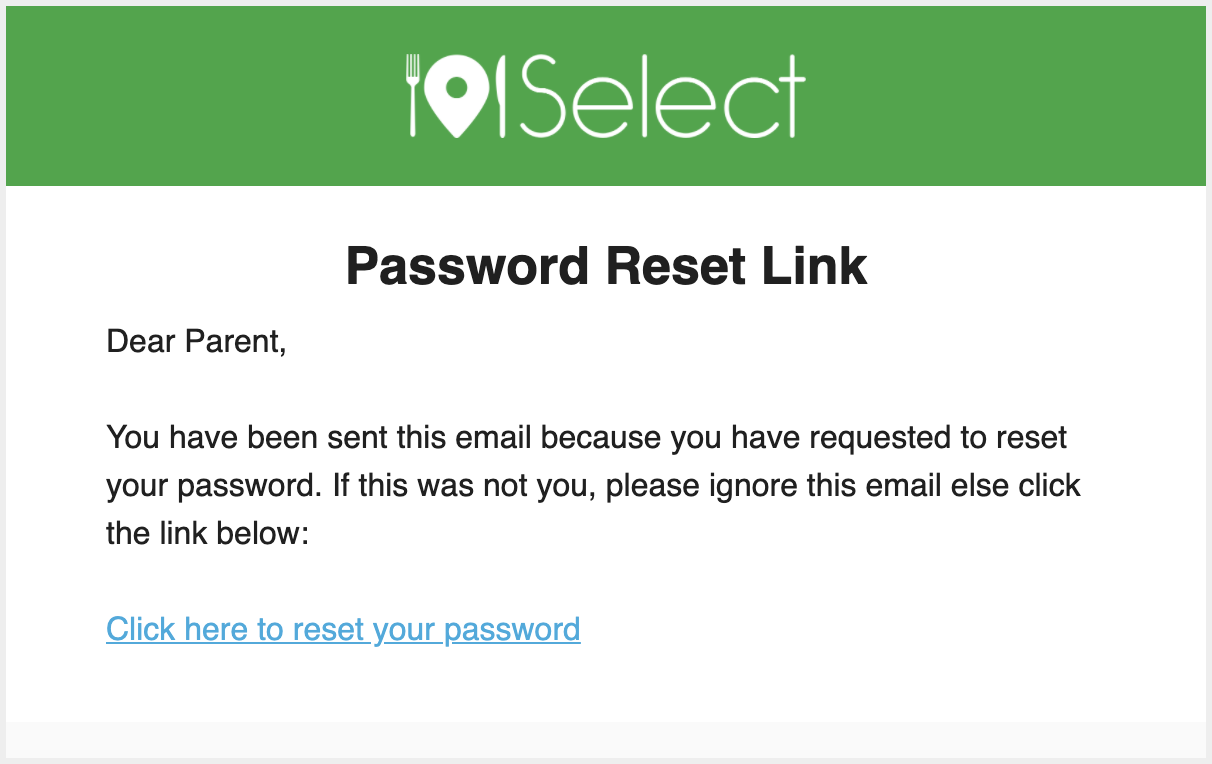
You are now registered for Select, and you can now log in using the email address and password you registered with.
Logging In
Logging in is as easy as heading to the login page, entering your email address and password, saying you’re not a robot, and clicking send. Make sure that the “Parent” option is selected, otherwise you will not be able to log in.
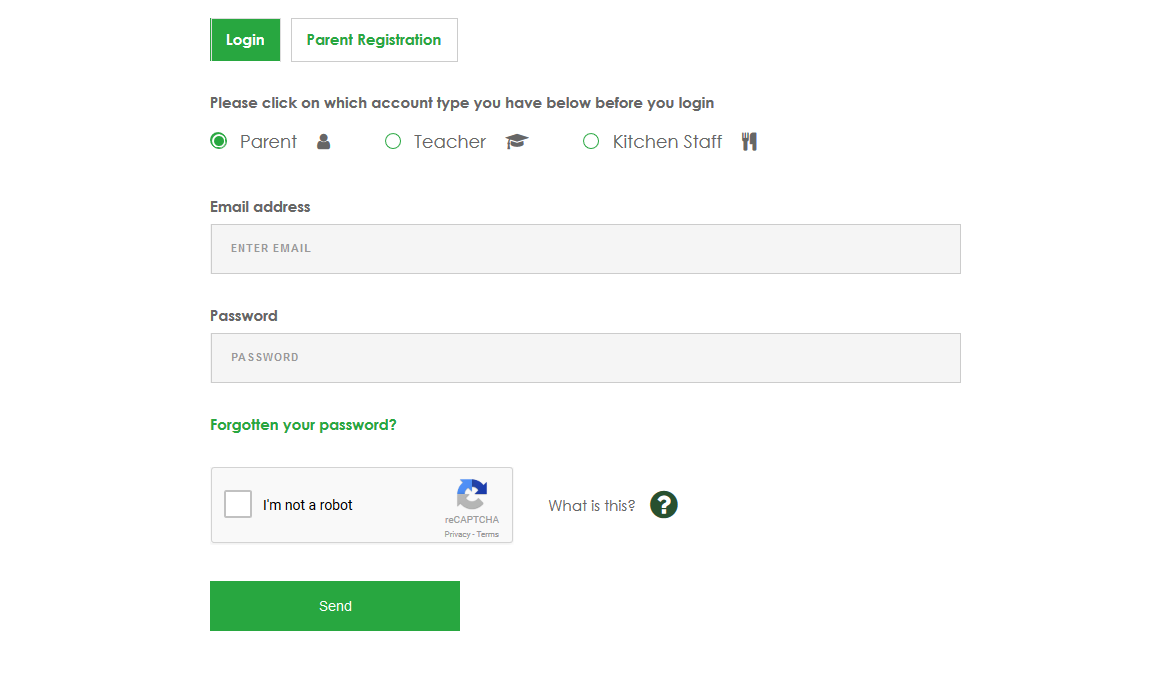
| Failing the “I’m not a robot” reCAPTCHA | Make sure that you have completed any picturebased tasks, and that the box is showing a green tick before continuing. |
| I’m getting an “Incorrect Login Details supplied” message when I try to log in. | Make sure you are logging in with the email address you registered with and that you are entering your password correctly. Also, make sure you aren’t trying to log in as “Kitchen Staff” or “Teacher”. |
| “I’m trying to log in but it’s asking for all my details again” | It sounds like you’ve accidentally entered the “Parent Registration” page and are re-registering for Select. There is no need to do this, simply return to the previous page and log in with the email address and password you registered with. |
| I can’t remember my password! | You can reset your password using the “Forgotten Your Password?” link on the log in page. |
| There’s red text that says “Verification expired. Check the checkbox again.” | You completed the reCAPTCHA but you took too long to click the green send button, so the verification expired (you normally have about 2 minutes). Simply re-tick the box and continue. |
| My login page looks entirely different, there’s no captcha, and I see completely different options to the ones in this quick start guide. | You might be trying to log in to the wrong site. The correct site will say “Select” at the top, and the web address will be https://select.aspens-services.com. |
Resetting your password
If you're having trouble remembering your password, you can now simply reset your password. From the login page, click the Forgotten your password? link.